
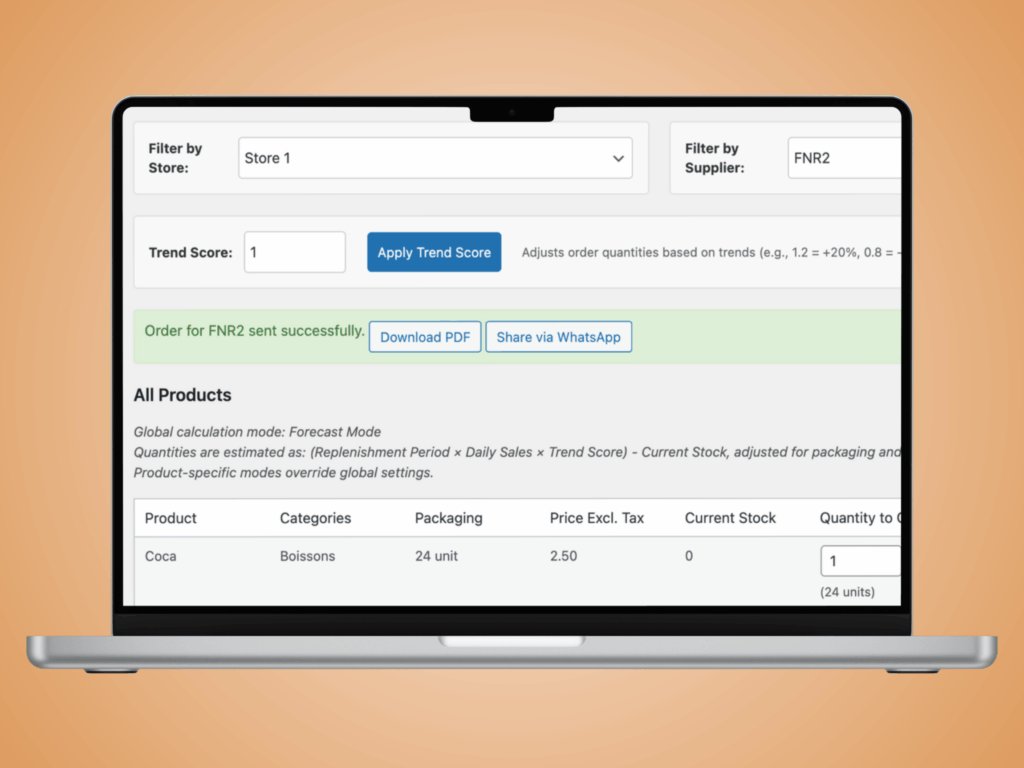
This guide explains how to place a supplier order in OrderStock, the ordering module of TulipWork. You will learn how to select products, set quantities, preview the order, send it to your supplier, and manage delivery.
Before You Start
- You must be logged in to your TulipWork account.
- Your restaurant and supplier must already be set up in the system.
- Product packaging units must be configured in each product’s settings.
Step 1: Log In and Open OrderStock
Go to your TulipWork account and log in. Once logged in, open the OrderStock section.
Select the restaurant you want to place the order for.
Step 2: Select Your Supplier
Choose the supplier you want to order from. In this example, we select Crétagel, the bread supplier.
The product list (mercuriale) for this supplier is displayed automatically. It shows all the products available from this supplier for your restaurant.
Step 3: Enter Quantities
For each product, enter the quantity you need. Quantities are based on the packaging units configured for each product.
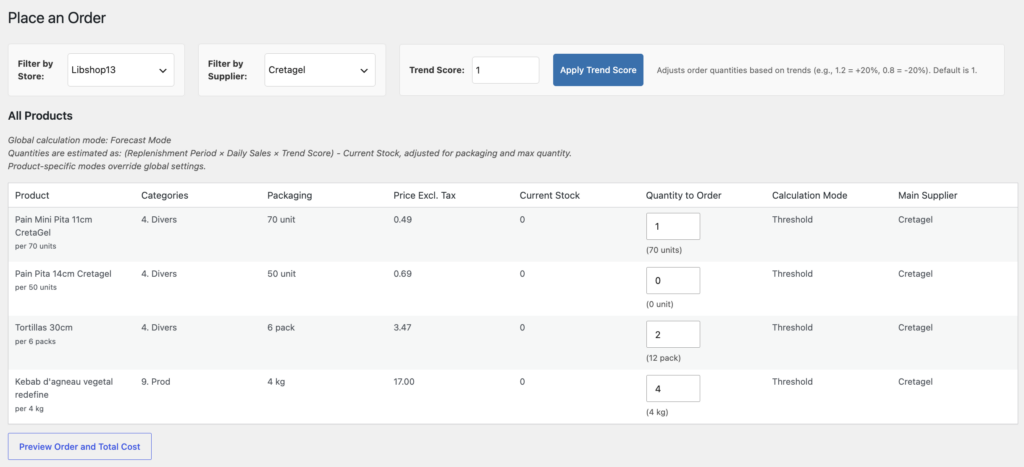
How packaging units work
Each product is configured with its packaging unit. OrderStock automatically calculates the total quantity based on the number of packages you order.
💡 Note: OrderStock rounds up to the nearest package. For example, if you enter 5 kg for a product packaged in 4 kg packs, the system will automatically set the quantity to 8 kg (2 packs).
Step 4: Preview the Order
When you have entered all quantities, click “Preview order”. A summary is displayed showing the full order and the total cost.
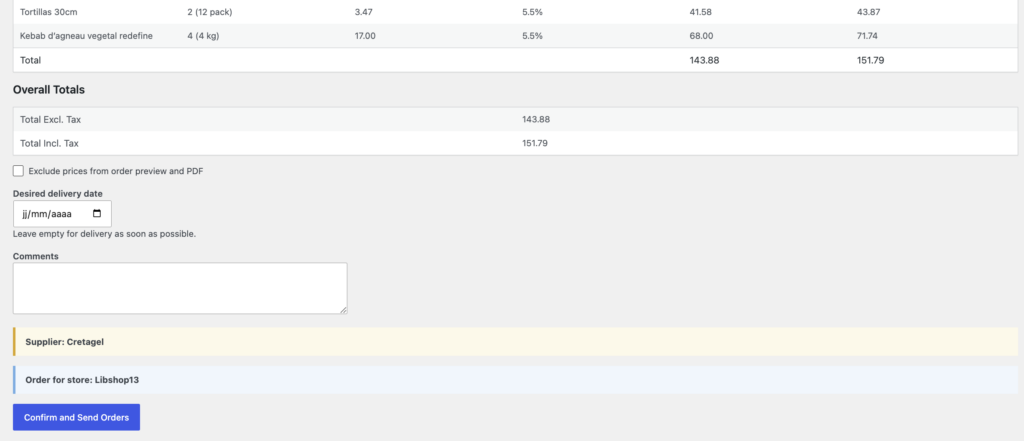
Options available at this stage
- Show or hide prices: you can choose to exclude prices from the order and the PDF sent to your supplier.
- Delivery date: select the requested delivery date. If you do not want to specify a date, click Clear.
- Comments: add any useful information for the supplier, such as opening hours or specific instructions.
- 💡 Note: Opening hours and contact details are already stored in your restaurant profile. You do not need to add them in the comments unless you want to draw extra attention to them.
A summary block confirms the supplier name and the ordering restaurant.
Step 5: Confirm and Send the Order
“Click Confirm and send the order”. The order is sent to your supplier immediately.
Once the order is sent, a confirmation screen appears. From there you can:
- Share the order directly via WhatsApp.
- Download the order as a PDF.
- View the email confirmation sent to the supplier.
What is included in the PDF
- Order date and requested delivery date.
- Restaurant name and delivery address.
- Opening hours and phone number (from the restaurant profile).
- Itemized product list with quantities, packaging details, and prices.
- Your comments, if any were added.
💡 Note: You can also share the order via WhatsApp by copying the message and pasting it directly into the conversation with your supplier or your team.
Step 6: Manage Orders in the Order History
All orders are saved and accessible from the order history. Each order can have one of the following statuses:
- Pending: the order has been sent and is waiting for delivery.
- Received: the order has been delivered.
- Updating an order after delivery
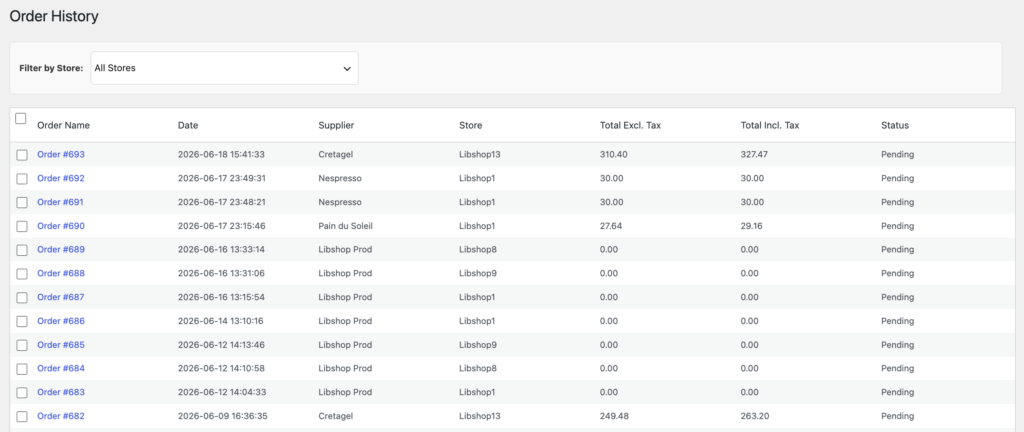
If the delivery does not match the order exactly, you can update the quantities in the order history:
- Open the order in the history.
- Change the quantities to reflect what was actually delivered. For example, if you ordered 10 boxes of tortillas but only received 9, enter 9.
- If a discount was applied due to missing items, enter the discount amount.
- Click “Update order” to save the changes.
- Set the status to “Received” and confirm.
Step 7: Ordering from a Smartphone
OrderStock works on smartphones. The interface is fully responsive, so the ordering process is exactly the same on a mobile device as on a desktop.
Simply open TulipWork on your phone, select your restaurant and your supplier, enter the quantities, and send the order.
💡 Note: This is useful for restaurant managers who need to place orders directly from the kitchen or on the go.
Step 8: Multi-supplier orders
You can place orders with several suppliers at the same time. Simply enter the quantities for each supplier on the same screen, then confirm. OrderStock sends a separate order to each supplier in one click.
Summary
To place a supplier order in OrderStock:
- Log in to TulipWork and open OrderStock.
- Select your restaurant and your supplier.
- Enter the quantity for each product. The system calculates totals automatically based on packaging units.
- Preview the order, set a delivery date and add comments if needed.
- Confirm and send. The order is sent by email and can also be shared via WhatsApp or downloaded as a PDF.
- Update the order in the history once the delivery is received.
