
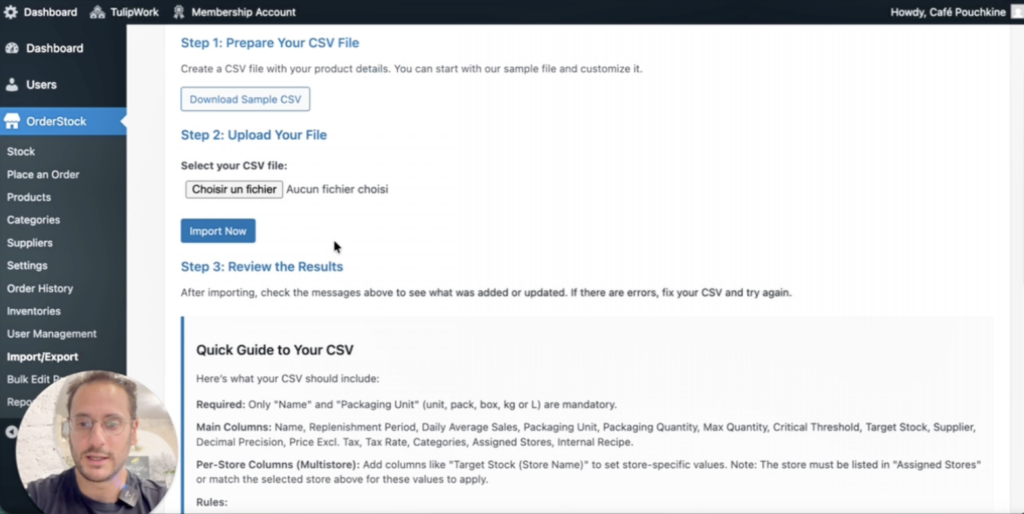
This guide shows you how to import many products at once into OrderStock using a CSV file. Instead of adding products one by one, you can prepare a single file with all your products and import it in a few clicks. You can also ask a team member to prepare the file for you.
This tutorial covers the simple mono-store mode. The multi-store mode will be covered in a separate tutorial.
Step 1: Open the Import/Export Page
- Log in to your OrderStock account.
- Go to the Products page from the main menu.
- Click on Import/Export.
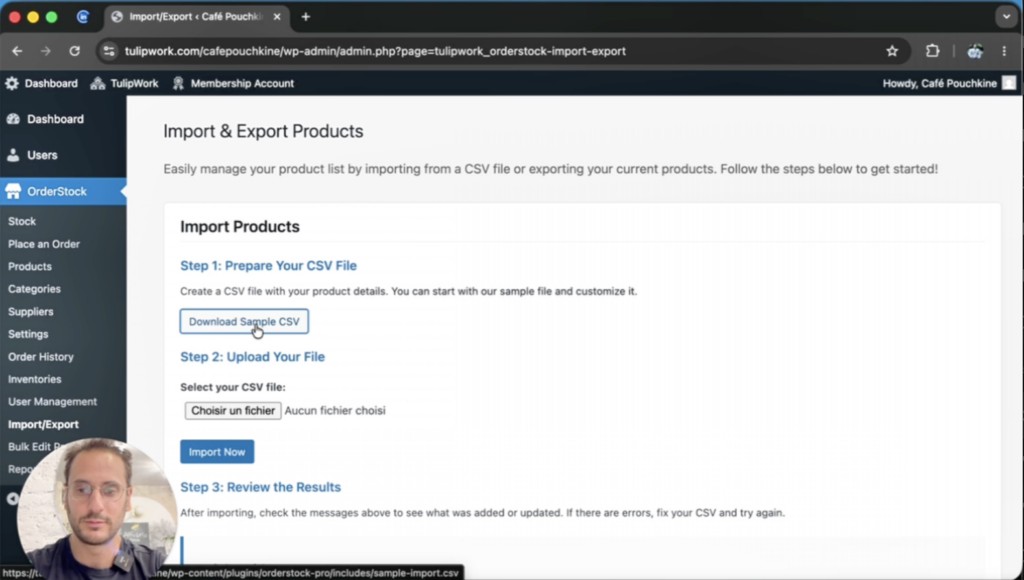
Step 2: Download the CSV Template
On the Import/Export page, download the CSV template. This file is your starting point. Each row is one product. Each column is one product attribute.
The template already contains example products (Product A, Product B, and so on). You will replace these example rows with your own products.
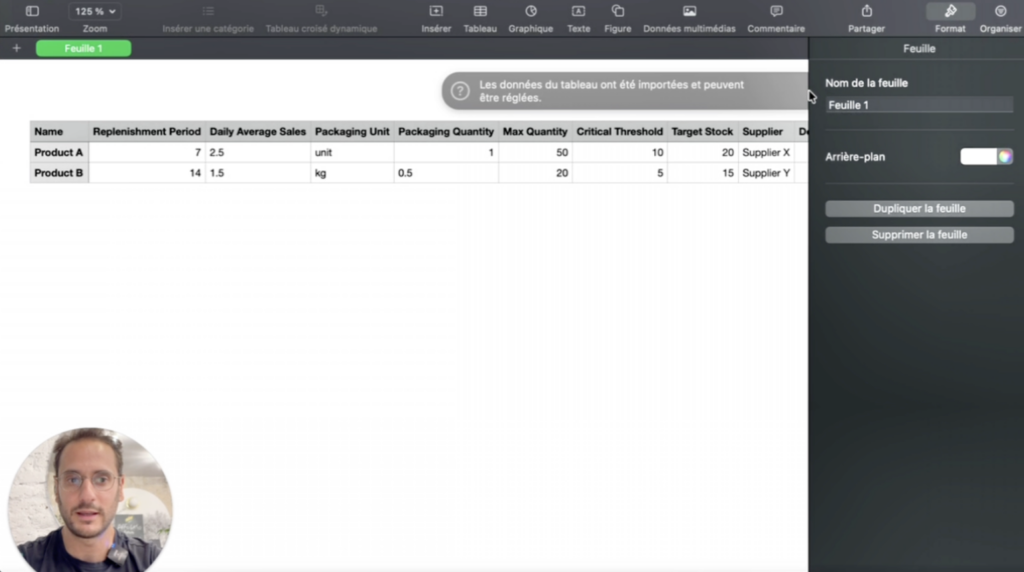
Step 3: Fill In the CSV File
Required Columns
Only two columns are required for each product:
- Name: The name of the product (for example: Almond Flour, Sugar, Chicken).
- Packaging Unit: The unit used to count the product. Accepted values are:
unit,packaging,box,kg, andl.
These two columns are required because they are the base for your stock counts and your supplier orders. Without a name, there is no product. Without a packaging unit, your team cannot count the stock or place an order.
Optional Columns
All other columns are optional. You can leave them empty and fill them later. Here is what they mean:
- Replenishment Period (in days): Used in Forecast mode. This is the number of days you want to have the product in stock. For example, enter
30if you want 30 days of almond flour in stock. Enter5for perishable products like chicken. - Daily Average Sales: How many units you sell or use per day. For example, if you use 5 kilos of almond flour per day, enter
5. - Threshold: Used in Threshold mode. This is the minimum quantity you always want to keep in stock. For example, enter
10if you never want to have less than 10 kilos. - Stock Mode: Choose
forecastorthresholdfor this specific product. If you leave it empty, OrderStock uses the default mode defined in your settings. - Packaging Quantity: The quantity inside one package from your supplier. For example, if sugar is sold in 25 kilo bags, enter
25. - Maximum Order Quantity: A safety limit. The order will never go above this number, even if your needs are higher.
- Supplier: The name of the supplier. If the supplier does not exist yet, OrderStock will create it for you.
- Decimal Precision: How many decimals you want in your stock counts and orders. Enter
0for whole numbers or2for two decimals. - Price: The price per unit from this supplier.
- Tax Rate: The tax rate for this product. You can manage your tax rates in the settings.
- Category: The product category (for example: Food, Beverage). If the category does not exist, OrderStock will create it for you.
- Assigned Stores: Used only in multi-store mode. You can ignore this column in mono-store mode.
Tip: To start simple, you can fill only the Name and Packaging Unit columns. You can complete the other information later from the Products page.
Two Stock Modes
OrderStock has two stock modes. You choose the default mode in your settings, but you can also set a different mode for each product in the CSV file.
- Forecast mode: OrderStock calculates your needs based on your daily average sales multiplied by the replenishment period.
- Threshold mode: OrderStock makes sure you always have at least the threshold quantity available.
You can also combine both. For example, a product can have a replenishment period of 30 days and a threshold of 10 kilos.
Step 4: Save the File as CSV
Once your file is ready, save it in CSV format. The file must be a CSV file. Other formats will not work.
- In Excel, click on File > Export (or Save As).
- Choose the CSV format.
- Name the file (for example:
orderstock_import.csv). - Save the file on your computer.
Step 5: Import the File into OrderStock
- Go back to the Import/Export page in OrderStock.
- Click on Choose a file.
- Select your CSV file.
- Click on Import now.
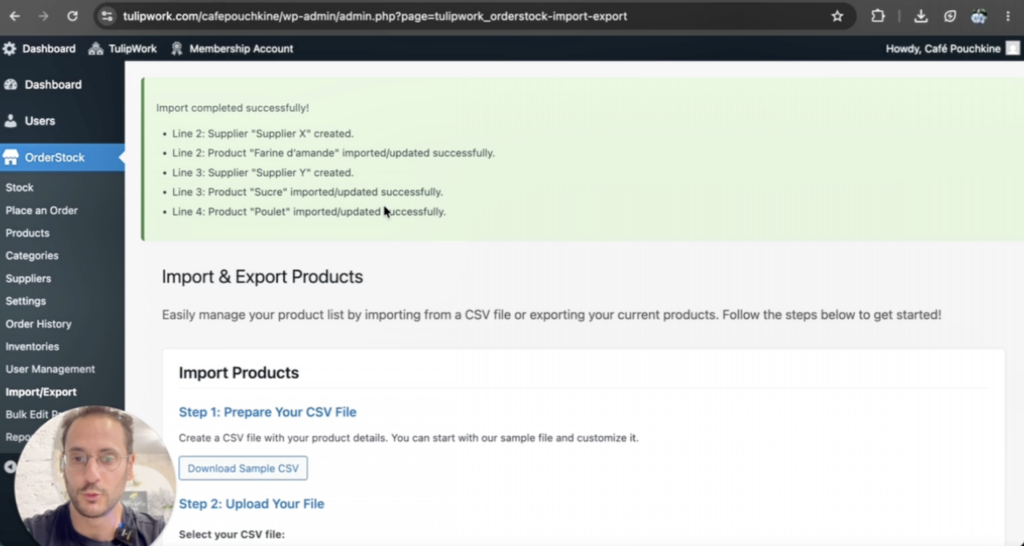
OrderStock will show you a summary of the import. For example:
- New suppliers created (if a supplier in the file did not exist yet).
- New categories created (if a category in the file did not exist yet).
- Products successfully imported.
Step 6: Check Your Products
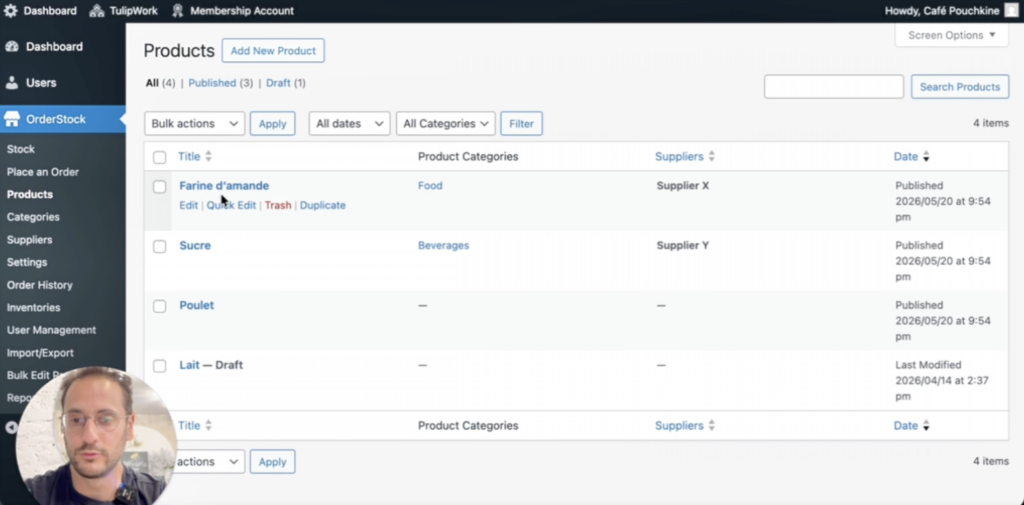
Go back to the Products page. You will see all your new products in the list, with their suppliers, categories, and other information.
You can edit any product directly from this page if you need to make changes.
Exporting Your Products
You can also export your products at any time. On the Import/Export page, click on the export button. OrderStock will generate a CSV file with all your products and their information.
Next Steps
Your products are now ready to use. You can:
- Start counting your stock from the Stock page (also available on smartphone).
- Place orders with your suppliers.
- Use the Bulk Edit feature to modify many products at the same time (covered in a separate tutorial).
The next tutorial will show how to import products in multi-store mode, when you manage several shops.
Need Help?
If you have any questions or need help to get started with OrderStock, please contact me by email. I am happy to help.
