
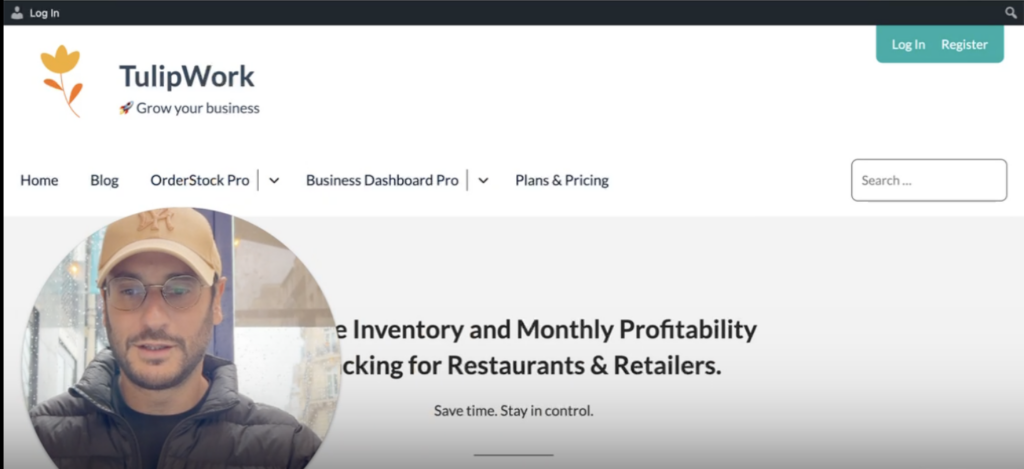
This guide explains how to correctly configure Order Stock Pro. You will enter your company information, define important settings, and activate multi-store options if needed. Proper initial setup ensures you receive the right notifications and generate reliable supplier orders.
1. Access Order Stock Pro and open the settings
- Go to www.tulipwork.com.
- Click Login and sign in with your credentials.
- Once in the dashboard, click Order Stock, then click Settings.

You will see two tabs:
- General Settings
- Pro Settings
2. Fill in the General Settings
This is the most important section.

- Administrator email address Enter the email address (or addresses) that should receive technical notifications and order alerts. You can add multiple emails: simply separate them with a comma (example: contact@mycafe.com, orders@mycafe.com).
- Company name This name will appear on the orders sent to your suppliers.
- Delivery address Fill this in if you have only one point of sale. Enter the full address of your store or location.
- Phone number and Contact email address These details help your suppliers contact you easily after receiving an order. Even though these fields are optional, we strongly recommend filling them in.
- Tax rate Set the default tax rate that will be applied to your products. You can change it later for each individual product.
- Order calculation mode You have two options:
- Forecast mode: The system calculates the order quantity based on the average daily sales volume (entered per product) multiplied by the replenishment period.
- Critical threshold / Target stock mode: The system suggests an order as soon as the stock reaches a minimum level you have defined.
- Data to delete This option allows you to reset everything and start from zero. Do not use this option unless you really want to erase all your configuration.
Once all fields are completed, click Save.
3. Configure Pro Settings (Multi-store)
Use this section if your company manages several points of sale and you have a central kitchen, laboratory, or central warehouse:
- Go to the Pro Settings tab.
- Enable Multi-store / Multi-point of sale mode.
- Select the internal supplier that will supply your different points of sale (for example: Central Kitchen).
- If this supplier does not exist yet, create it first in the suppliers list.
- Re-select this supplier in the Pro Settings.
- Click Save.

This internal supplier will become the main supply source for your chain of stores.
4. Need help?
If you have any questions or encounter difficulties, go to tulipwork.com/contact, and send me a message. We are here to help you quickly.
