
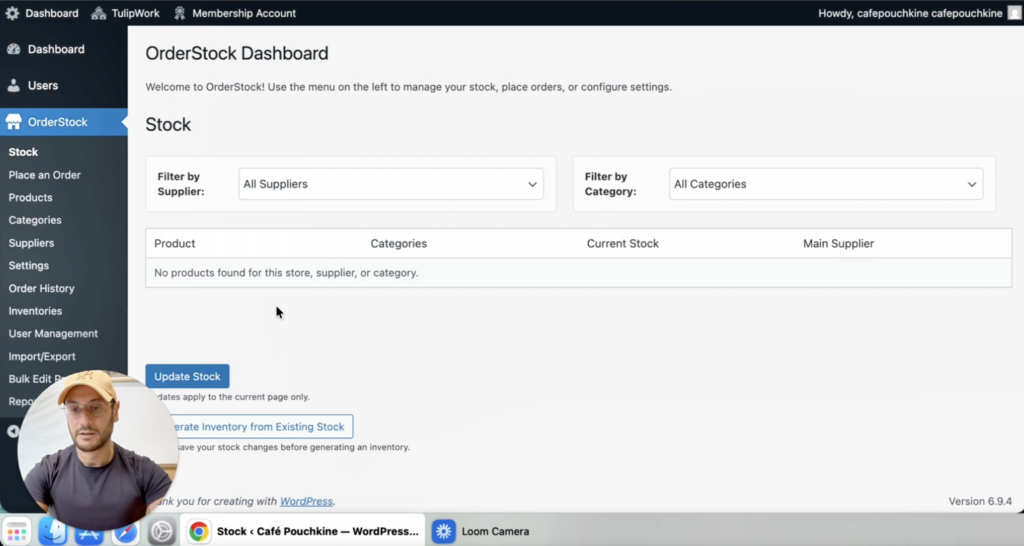
This page will guide you through getting started with OrderStock Pro and explain how to access the inventory management tool that allows you to track your stock levels, save your inventories, and place your first supplier orders.
In this first video from the OrderStock Pro documentation, I show you how to get started with OrderStock Pro — the simplest solution for managing your inventory and supplier orders.
Step 1: Subscribe to the Offer on Tulipwork
The first step is very simple. Just go to the Tulipwork subscription page and subscribe to the OrderStock Pro plan.

Click on “Select”, then enter an identifier (ideally your company name, without spaces, all lowercase), a password, and your email address.
Next, enter a “Site Name”. This is the identifier for the workspace that will be created for you on Tulipwork. Once again, use your store or company name without spaces and in lowercase. Example: cafepouchkine.
Then, enter a “Site Title”. This is the display name of your workspace or business. Here you can use capital letters and spaces. Example: Café Pouchkine.

This will create your dedicated, fully private workspace where you can manage and view your stock levels in real time, as well as place and receive supplier orders.
Then click on “Submit and Checkout”, enter your payment information if required, and your subscription will be activated!
